
Fast Tags | Delivered before Christmas
🎄 In December, your shoppers want to know one thing: will it arrive before Christmas? With the "Delivered before Christmas" option, your Fast Tag answers that question right above the "Add to cart" button, automatically and only when it's true.
ⓘ Don't know what Fast Tags are? Read Fast Tags | What is it? first.
1. What your shoppers see
When the option is on and the estimated delivery date falls between December 2 and December 24, your Fast Tag adds a Christmas mention:
- If you use "Show the fastest ETA", the sentence includes "before Christmas". Example: "In stock. Delivered before Christmas on Saturday Dec 6"
- If you use "Show all ETAs", the badge shows the header "Delivered before Christmas" above the delivery methods.
The mention uses your Fast Tag's style (accent color, icon and rounded corners), so it matches your store.
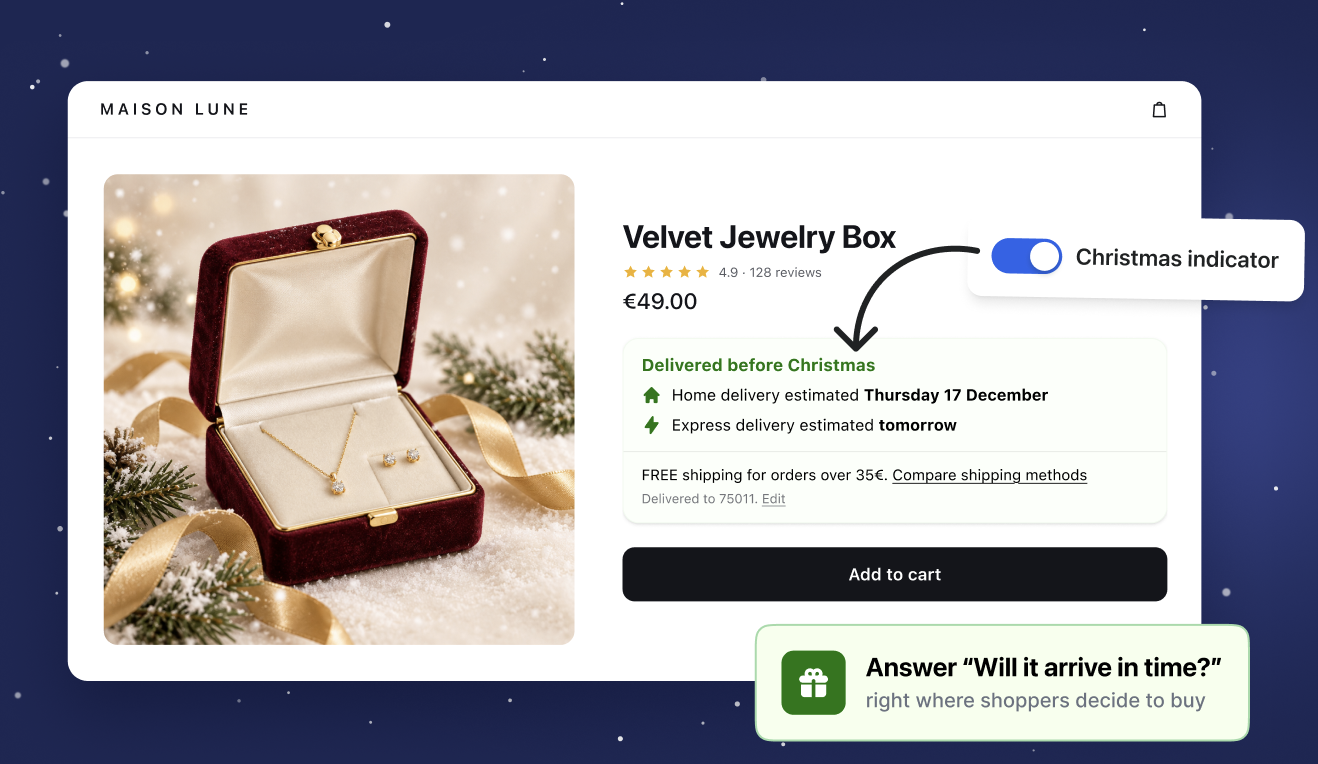
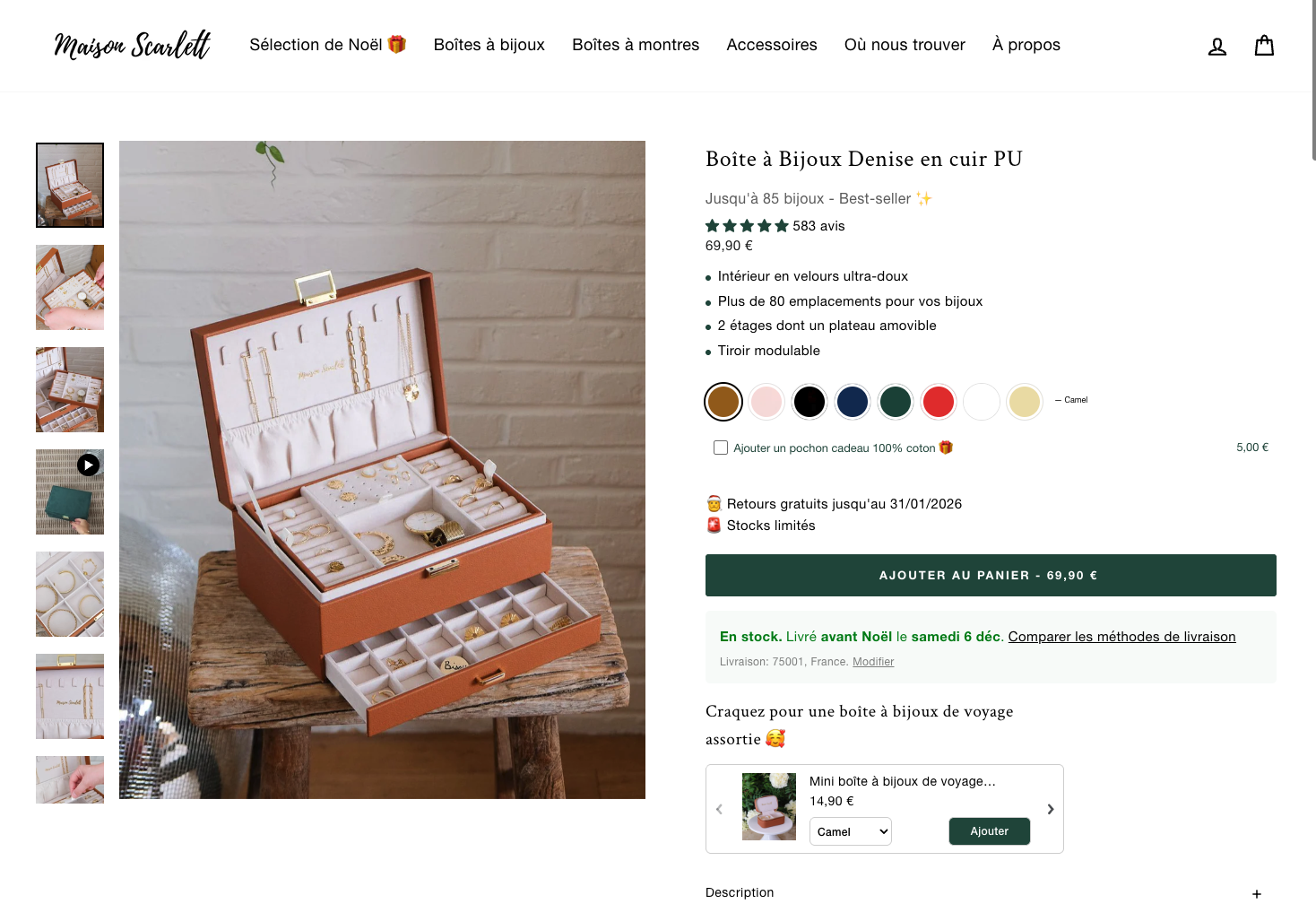
Why we show both the mention and the date. "Before Christmas" alone can hide important info: some shoppers need their parcel earlier, for example by December 22. Showing the exact date next to the Christmas mention lets each shopper check it arrives in time.
2. When it shows
The mention is linked to Bigblue's Christmas carrier cut-offs. It is not a fixed date.
- It follows the delivery date, not today's date. The mention shows when the estimated delivery date falls between December 2 and December 24. If delivery takes a few days, your shoppers start seeing it at the beginning of December. While the date shown is still in November, nothing changes on your storefront.
- A smart calculation behind one simple date. It takes into account your warehouse cut-off, your auto-fulfill delay, the shopper's location and the carrier's Christmas cut-off.
- It stops by itself. Each carrier has a last day it can still deliver before Christmas, depending on the destination. Once that day has passed, the estimated date moves after Christmas and the mention disappears for those shoppers. You don't need to turn anything off.
Two shoppers on the same day can see different results. For example, a shopper whose carrier has passed its cut-off won't see the mention, while another shopper close to the warehouse still will.
ℹ️ The date relies on the Christmas cut-offs Bigblue has aligned with its warehouses and carriers. Like every Fast Tag date, it remains an estimate: during peak season, a small number of parcels may still arrive later.
3. Turn it on
You need Fast Tags activated on a Shopify or WooCommerce shop, and the "Manage integrations" permission.
- Go to Integrations, select your shop, then open the Fast Tags tab.
- In the display settings, switch on "Delivered before Christmas".
- Check the preview on the right, then click Save.
💡 Bigblue's recommendation💙: turn it on before Black Friday. It starts showing as soon as your delivery dates reach December, at the right moment, with no further action.
4. FAQ
I turned it on but I don't see the mention on my store.
Check that:
- your Fast Tags are activated and, on Shopify, the Fast Tags app embed is turned on in your theme;
- the estimated date shown for the product is between December 2 and December 24. If it's still in November, the mention will appear within a few days. If the carrier's Christmas cut-off has passed, the date moves after Christmas and the mention is hidden.
Still no Fast Tag at all? See Fast Tags | Troubleshooting guide.
Can I change the text or when it starts?
No. The text depends on your ETA display ("before Christmas" or "Delivered before Christmas"), and the window (deliveries from December 2) is the same for every merchant. You can change the colors, icon and corners in the Fast Tag branding settings.
Does it change the delivery date shown to my shoppers?
No. It only adds the Christmas mention when the date shown already falls between December 2 and December 24.
Do I need to turn it off after Christmas?
No. It shows only for deliveries in December, before Christmas. You can leave it on for next year.